Import
/settings/import holds import history; /settings/import/new starts one.
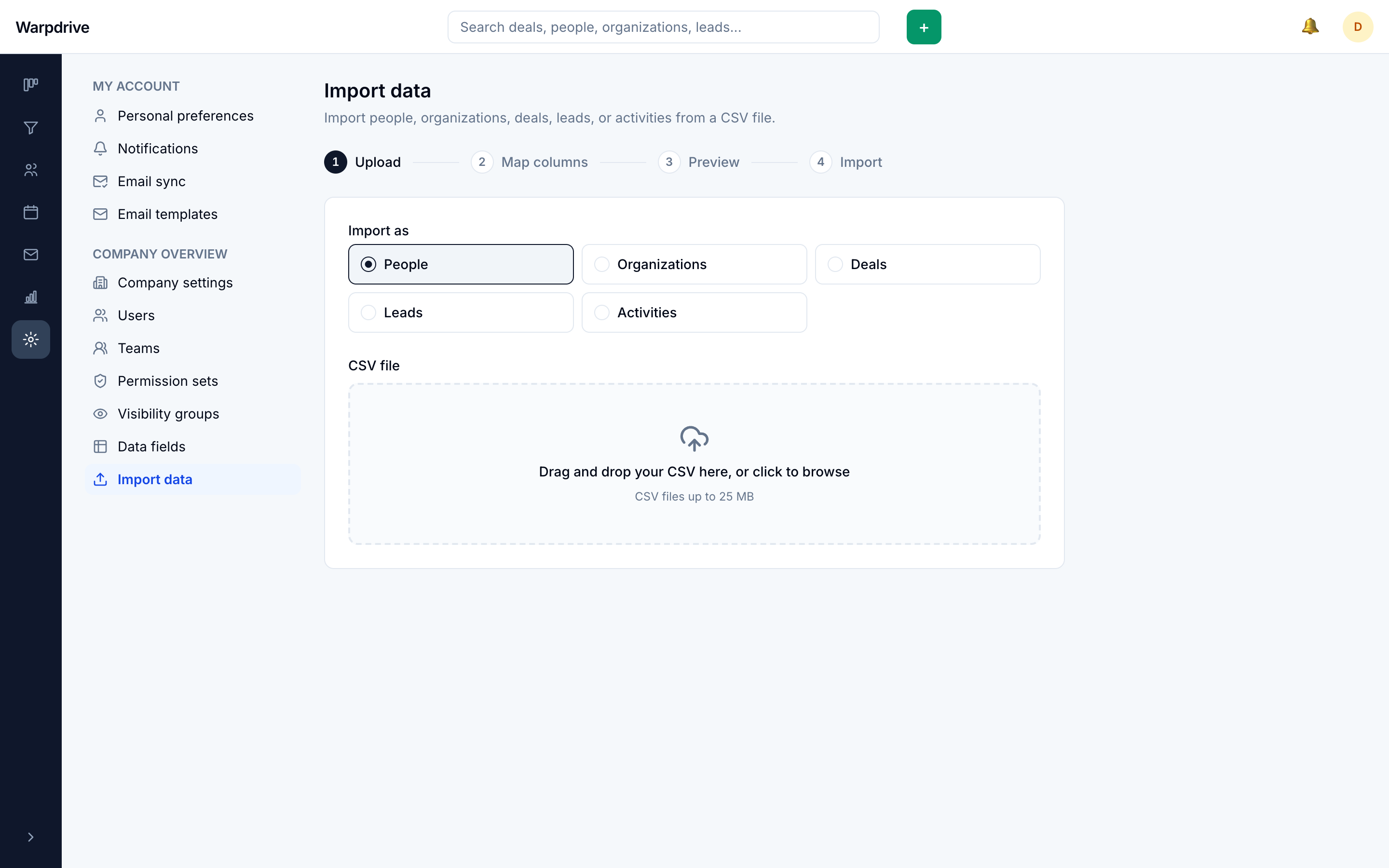
The wizard
Import is a stepper:
- Upload a CSV, by drag and drop or file picker, and choose its Source: CSV file for any spreadsheet, or Pipedrive export for a file exported from Pipedrive.
- Map its columns onto Warpdrive fields, including any custom fields. Columns whose header matches a field name are mapped for you; check them and change any that are wrong.
- Preview the parsed result.
- Commit the import.
Choosing Pipedrive export adds what a migration needs: a Note import target, the Pipedrive ID column for safe re-runs, links between files, owners, deal history, and an option to create missing pipelines and stages. See Migrating from Pipedrive for the full walkthrough.
A person's name can be mapped as a single Name column or as separate First name and Last name columns, since contact exports routinely split the name. Mapping either part satisfies the required Name field, and mapped parts are joined into the display name.
How uploads and processing work
The file uploads directly from the browser to object storage using a presigned URL, then the import itself runs as a background job.
Background jobs run only in the worker process. If an import stays at "uploaded" and
never progresses, the worker is not running. Check with docker compose ps and
docker compose logs -f worker.
This is the single most common import problem, and it does not look like a worker problem from the interface.
Because it is a background job, a large import continues if you navigate away.
Deduplication and linking
Rows are matched against existing records rather than blindly inserted. Person and organization links are resolved find-or-create, so importing leads for a company that already exists attaches them to that company instead of creating a second one.
Errors
Rows that fail are reported per row with the reason, rather than failing the whole file. A partially successful import tells you exactly which rows did not land, so the usual fix is to correct those rows and re-import only them.
Rows that imported but need a second look, such as a Pipedrive owner that matched no Warpdrive user, carry a warning. Warnings appear next to the row in the results and in the downloadable report, and never stop the row from importing.
Undo
A completed import can be undone, which removes the records it created. This is what makes it safe to try an import on real data rather than rehearsing on a copy.
Hidden fields
Built-in fields hidden in Data fields are excluded from column mapping, which keeps the mapping step to fields your team actually uses.